
Introduction
Wi-Fi is convenient, but it isn't always the best option for every situation. If your connection keeps dropping, your video calls lag, or you need a reliable connection for large file transfers, connecting your laptop to a wired network may be worth considering.
The problem? Many modern laptops no longer include a built-in Ethernet port.
That's where a USB to Ethernet adapter comes in. This compact accessory lets you connect a compatible device to a wired network through an available USB port, making it a practical option for home offices, classrooms, business travel, and everyday computer use.
But how does a USB Ethernet adapter work? Should you choose USB-A or USB-C? And do you need a standalone adapter or a multiport hub?
In this guide, we'll explain the basics, cover the key features to look for, and introduce two TECKNET accessories that can help you build a more convenient laptop setup.
1. What Is a USB to Ethernet Adapter?
A USB to Ethernet adapter is a device that allows a computer or another compatible device to connect to a wired Ethernet network through a USB port.
One end connects to your device's USB-A or USB-C port, while the other provides an RJ45 Ethernet port for a network cable.
In simple terms, it gives compatible devices a way to use a wired network even if they don't have a built-in Ethernet port.
A USB Ethernet adapter can be useful for:
- Laptops without Ethernet ports: Add a wired network connection to a slim laptop.
- Home offices: Connect to a router or network wall jack when a cable connection is available.
- Video calls and remote work: Use a wired connection when you want to reduce dependence on Wi-Fi conditions.
- Large file transfers: Take advantage of a compatible wired network for transferring files to or from network storage.
- Travel and temporary workspaces: Connect to wired networks in offices, hotels, or other locations where Ethernet is available.
Keep in mind that an adapter doesn't automatically make every internet connection faster. Your actual performance depends on your internet plan, router, network cable, device, and the adapter's supported speeds.
2. Why Use Ethernet Instead of Wi-Fi?
Wi-Fi is useful because it lets you move around without cables. However, wireless performance can vary depending on distance from the router, walls, interference, network congestion, and other factors.
A wired Ethernet connection can offer several practical advantages.
A More Consistent Connection
An Ethernet cable provides a direct physical connection to your network. In environments where wireless signals are weak or congested, this can help provide a more consistent connection.
This can be useful when working from home, joining online meetings, or accessing files on a local network.
Potentially Lower Latency
Latency is the time it takes for data to travel between your device and another point on the network. A wired connection can offer lower and more consistent latency than Wi-Fi in some environments.
That can be helpful for real-time activities such as online gaming, remote desktop sessions, and video calls. However, your router, internet service, and the destination server still affect overall latency.
More Predictable Network Performance
If you're transferring large files or working with a network-attached storage device, a wired connection can provide more predictable performance than a congested wireless network.
For example, a compatible Gigabit Ethernet connection supports a theoretical network link rate of up to 1,000 Mbps. Actual data-transfer speeds are usually lower and depend on the complete network setup.
When Wi-Fi Is Still the Better Choice
You don't necessarily need Ethernet for everyday browsing, streaming, or checking email. If your Wi-Fi connection is already fast and stable, switching to a wired connection may not make a noticeable difference.
The best choice depends on your environment and how you use your device.
3. USB-A vs. USB-C Ethernet Adapter: What's the Difference?
Before choosing a USB Ethernet adapter, check which ports your device has.
USB-A to Ethernet Adapter
USB-A is the familiar rectangular USB connector found on many desktops, older laptops, and some current devices.
A USB-A Ethernet adapter may be a good option if your computer has an available USB-A port and you want to add wired networking without changing your existing setup.
For best results, check the USB version supported by your device. A USB 3.0 connection offers more bandwidth than USB 2.0 and is generally better suited to higher-speed Ethernet adapters.
USB-C to Ethernet Adapter
USB-C is a smaller, reversible connector found on many modern laptops, tablets, and other portable devices.
A USB-C to Ethernet adapter can be a practical choice if your laptop has USB-C ports but no built-in Ethernet connection.
However, connector shape alone doesn't guarantee performance. Check the adapter's specifications, the host device's supported USB features, and the operating system requirements before buying.
Which One Should You Choose?
| Feature | USB-A Ethernet Adapter | USB-C Ethernet Adapter |
|---|---|---|
| Connector | Traditional rectangular USB-A | Compact, reversible USB-C |
| Best for | Devices with an available USB-A port | Devices with a compatible USB-C port |
| Main consideration | USB version and available ports | USB capabilities and device compatibility |
| What to check | Supported Ethernet speed and operating system | Supported Ethernet speed, USB-C functions, and operating system |
Choose the connector that matches your device and check the full specifications before purchasing. If you need additional USB ports as well as a network connection, consider whether a multiport hub would better suit your workspace.
4. What Should You Look for in a USB to Ethernet Adapter?
Not all Ethernet adapters offer the same features. Here are the main things to compare.
Ethernet Speed
One of the first specifications to check is the maximum supported Ethernet speed.
Common options include:
- 10/100 Mbps: Suitable for some basic networking needs, but limited compared with Gigabit Ethernet.
- Gigabit Ethernet: Supports a theoretical link rate of up to 1,000 Mbps when the connected equipment and network support it.
- Multi-Gigabit Ethernet: Supports higher link rates, such as 2.5 Gbps, when the adapter and the rest of the network are compatible.
A Gigabit adapter is a practical choice for many home and office networks. However, it cannot deliver Gigabit internet speeds if your internet plan, router, cable, or other network equipment limits the connection to a lower speed.
USB Connection Speed
The USB interface also matters. Even if an adapter supports Gigabit Ethernet, the USB connection and the device's hardware can affect its actual performance.
Check the USB version supported by both the adapter and your computer. Using an adapter with a slower USB port may limit the speed you can achieve.
Plug-and-Play Support
A plug-and-play adapter can make setup simpler by allowing compatible systems to recognize the device without a separate driver installation.
However, driver requirements vary by adapter, operating system, and system version. Check the product's compatibility information if you use a specific version of Windows, macOS, Linux, ChromeOS, or another operating system.
Device Compatibility
Don't assume that every USB Ethernet adapter works with every device that has a USB port.
Before buying, confirm compatibility with your laptop, tablet, desktop, or other intended device. If you're connecting a tablet or mobile device, check whether it supports Ethernet networking through the relevant port.
Port Expansion
Some Ethernet adapters do more than add a network connection. They also include extra USB ports for connecting accessories such as a mouse, keyboard, flash drive, or external storage device.
If your laptop has limited ports, a combined USB hub and Ethernet adapter can help reduce the number of separate accessories you need.
Think about your daily workflow: do you only need a wired network connection, or would extra ports also make your setup more convenient?
5. TECKNET USB to Ethernet Adapter: Wired Networking and USB Expansion
If you want to add a wired network connection while keeping your desk setup simple, the TECKNET USB to Ethernet Adapter combines an RJ45 Gigabit Ethernet port with three additional USB 3.0 ports.
Key Features
- Gigabit Ethernet: Supports network speeds of up to 1,000 Mbps, with backward compatibility for 10/100 Mbps connections.
- Three USB 3.0 ports: Connect compatible accessories such as a keyboard, mouse, flash drive, or other USB devices.
- USB-A and USB-C connectivity: The included USB-C adapter helps accommodate compatible USB-A or USB-C host connections.
- Plug-and-play design: Designed to simplify setup on supported systems.
- Compact construction: A portable option for home offices, workstations, and travel.
- Broad operating system support: The product lists support for Windows, macOS, ChromeOS, iPadOS, Android, and Linux. Check the product page for compatibility details relevant to your device.
This 4-in-1 design is useful if your laptop has limited ports and you want both wired networking and extra USB connections in one accessory.
For the best results, make sure your router or network switch supports Gigabit Ethernet and use a suitable Ethernet cable. TECKNET recommends a CAT6 or higher cable for reaching 1,000 Mbps under compatible network conditions.
Explore the product: TECKNET USB to Ethernet Adapter
6. Ethernet Adapter vs. USB-C Hub: Which Do You Need?
A USB Ethernet adapter and a USB-C hub solve related but different problems.
An Ethernet adapter provides a way to connect to a wired network. A USB-C hub focuses on expanding the ports available on your device, which may include video output, USB data connections, and power delivery.
Some hubs include an Ethernet port, but not all of them do. Always check the port list before buying.
Choose a USB to Ethernet Adapter If…
- You mainly need a wired network connection.
- Your laptop doesn't have a built-in RJ45 port.
- You also want extra USB ports for accessories.
- You prefer a compact accessory focused on networking and USB expansion.
Choose a USB-C Hub If…
- You need to connect an external monitor.
- You want additional USB-A and USB-C data ports.
- You need pass-through charging for a compatible laptop.
- Your main priority is expanding your device's connectivity options.
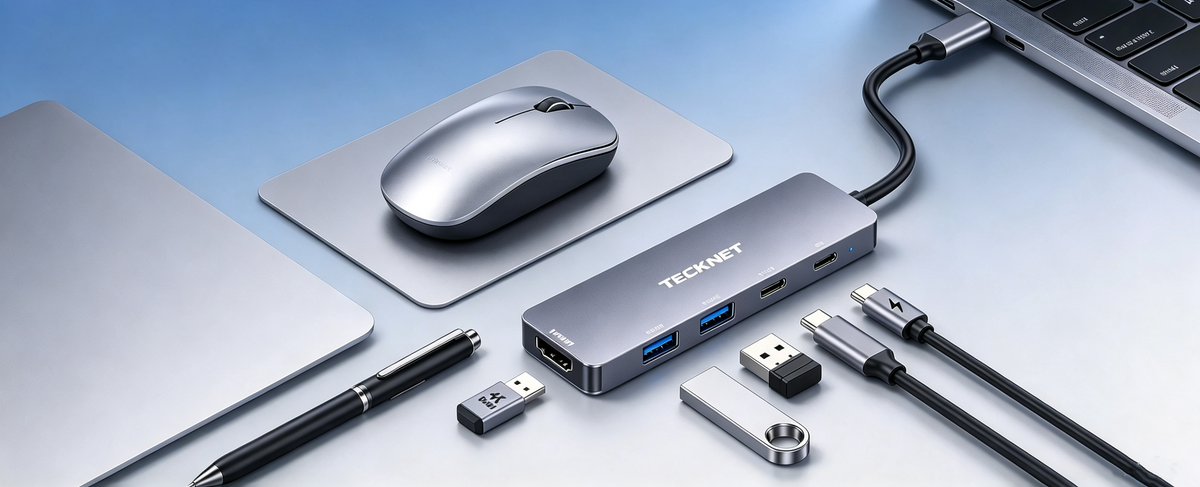
For example, the TECKNET 5-in-1 USB-C Hub Multiport Adapter TK-DS003 provides a 4K at 60Hz HDMI port, a USB-C Power Delivery charging port rated up to 100W input, two USB-A 3.0 data ports, and one USB-C 3.0 data port.
When paired with a compatible 100W PD charger, the hub reserves 15W for its own operation and can deliver up to 85W to the host device. Its HDMI output requires the connected device to support DisplayPort Alt Mode.
Important: The TK-DS003 does not include an RJ45 Ethernet port. If you need a wired network connection, choose an Ethernet adapter such as the TECKNET USB to Ethernet Adapter instead.
If you need external display output, additional USB data ports, and charging, the TK-DS003 may be a better fit for that particular workflow.
7. How to Connect a Laptop to Ethernet Using a USB Adapter
Connecting your laptop to a wired network is usually straightforward, although the exact steps depend on your device and adapter.
Step 1: Check Your Device's Ports
Identify whether your laptop has an available USB-A port or a compatible USB-C port. Make sure the adapter supports the connection you plan to use.
Step 2: Connect the Adapter
Plug the adapter into the appropriate USB port. If your adapter includes a separate USB-C connector or conversion accessory, use the connection that matches your device.
Step 3: Connect an Ethernet Cable
Plug one end of an Ethernet cable into the adapter's RJ45 port and the other end into an available LAN port on your router, network switch, or wall jack.
Step 4: Allow Your Device to Recognize the Adapter
Wait for your operating system to detect the adapter. If a driver is required, follow the manufacturer's instructions.
Step 5: Check Your Network Connection
Open your network settings and confirm that the wired connection is active. You can also open a website or run a network speed test to check whether the connection is working as expected.
If the adapter isn't detected, try another USB port, check the cable, restart the device, and review the adapter's compatibility and driver information.
8. Common USB Ethernet Adapter Problems and How to Fix Them
Even a simple adapter may occasionally need troubleshooting. Here are a few common issues to check.
The Adapter Isn't Recognized
Confirm that the adapter is fully connected and compatible with your operating system. If necessary, check the manufacturer's driver instructions and try a different USB port.
The Connection Is Slower Than Expected
Check the Ethernet speed supported by the adapter, the USB port, your router or switch, and your internet plan.
Also inspect the Ethernet cable. Damaged cables or equipment limited to 100 Mbps can prevent a Gigabit connection from reaching its expected link rate.
The Wired Connection Doesn't Work
Make sure the Ethernet cable is connected securely at both ends and that the router or switch port is active.
If your computer has multiple network interfaces, check its network settings to confirm that the Ethernet connection is enabled.
The Adapter Uses Too Many Ports
If you need more connections for displays, charging, and data accessories, consider a multiport hub for those tasks. Remember that a hub's advertised ports determine its functions; a hub without an RJ45 port will not provide a wired Ethernet connection by itself.
9. Frequently Asked Questions
What does a USB to Ethernet adapter do?
A USB to Ethernet adapter allows a compatible device to connect to a wired network through a USB port. It is especially useful for laptops and other devices that don't have a built-in Ethernet port.
Is Ethernet faster than Wi-Fi?
It can be, but not in every situation. A wired connection may provide more consistent performance and lower latency in some environments. Actual speeds depend on the router, network cable, adapter, internet plan, and Wi-Fi conditions.
Do USB Ethernet adapters work with laptops?
Many do, provided the adapter supports the laptop's USB interface and operating system. Always check the compatibility details before buying.
Can I use a USB-C to Ethernet adapter with a USB-A port?
Not directly unless the adapter or an appropriate conversion accessory supports that connection. Check the connector type and supported configuration listed by the manufacturer.
Does a USB-C hub always include Ethernet?
No. Some USB-C hubs include an RJ45 Ethernet port, while others focus on HDMI, USB data, and charging. Check the listed ports before purchasing.
Will a Gigabit Ethernet adapter give me 1,000 Mbps internet?
Not necessarily. Gigabit Ethernet describes a theoretical network link rate of up to 1,000 Mbps. Actual internet speed depends on your internet plan, router, cable, adapter, device, and other network conditions.
Can I connect a keyboard and mouse while using Ethernet?
Yes, if your adapter or hub has enough compatible USB ports. For example, the TECKNET USB to Ethernet Adapter combines one RJ45 Gigabit Ethernet connection with three USB 3.0 ports.
Final Thoughts
A USB to Ethernet adapter is a practical way to add wired networking to a compatible laptop or other device without a built-in Ethernet port. It can be especially useful for home offices, travel, online meetings, and situations where you prefer a wired connection.
Before choosing one, compare the Ethernet speed, USB interface, operating system compatibility, and number of additional ports you need.
If you want wired networking plus USB expansion, the TECKNET USB to Ethernet Adapter combines a Gigabit Ethernet port with three USB 3.0 ports.
If your priority is connecting an external monitor, adding USB data ports, and charging a compatible laptop, the TECKNET 5-in-1 USB-C Hub TK-DS003 offers a different set of connectivity options.
Choose the accessory that matches your device and workflow, and check the product specifications to make sure it supports the connections you need.
What Is a USB to Ethernet Adapter? How to Choose the Right One for Your Laptop
Meta Title: USB to Ethernet Adapter: How to Choose the Right One | TECKNET
Meta Description: Learn what a USB to Ethernet adapter does, how it connects your laptop to a wired network, and what to check for speed, compatibility, and port expansion.
Suggested URL: /blogs/news/usb-to-ethernet-adapter-guide
Primary Keyword: USB to Ethernet adapter
Secondary Keywords: USB Ethernet adapter, USB-C to Ethernet adapter, Ethernet adapter for laptop, USB to Gigabit Ethernet adapter

Leave a comment
This site is protected by hCaptcha and the hCaptcha Privacy Policy and Terms of Service apply.